
Workflow Configuration
Fourthline Hub
Workflow configurations define how your workflows run and what is deployed to Production.
Use workflow configurations to define:
- Supported documents and countries
- Enabled products and modules
- Verification requirements
Update a workflow configuration when your onboarding or compliance requirements change.
Prerequisites
You must:
- Have the appropriate user role:
- Configuration Editor: Edit workflow configurations
- Base: View workflow configurations (read-only)
- Have access to the Configurations page in Hub
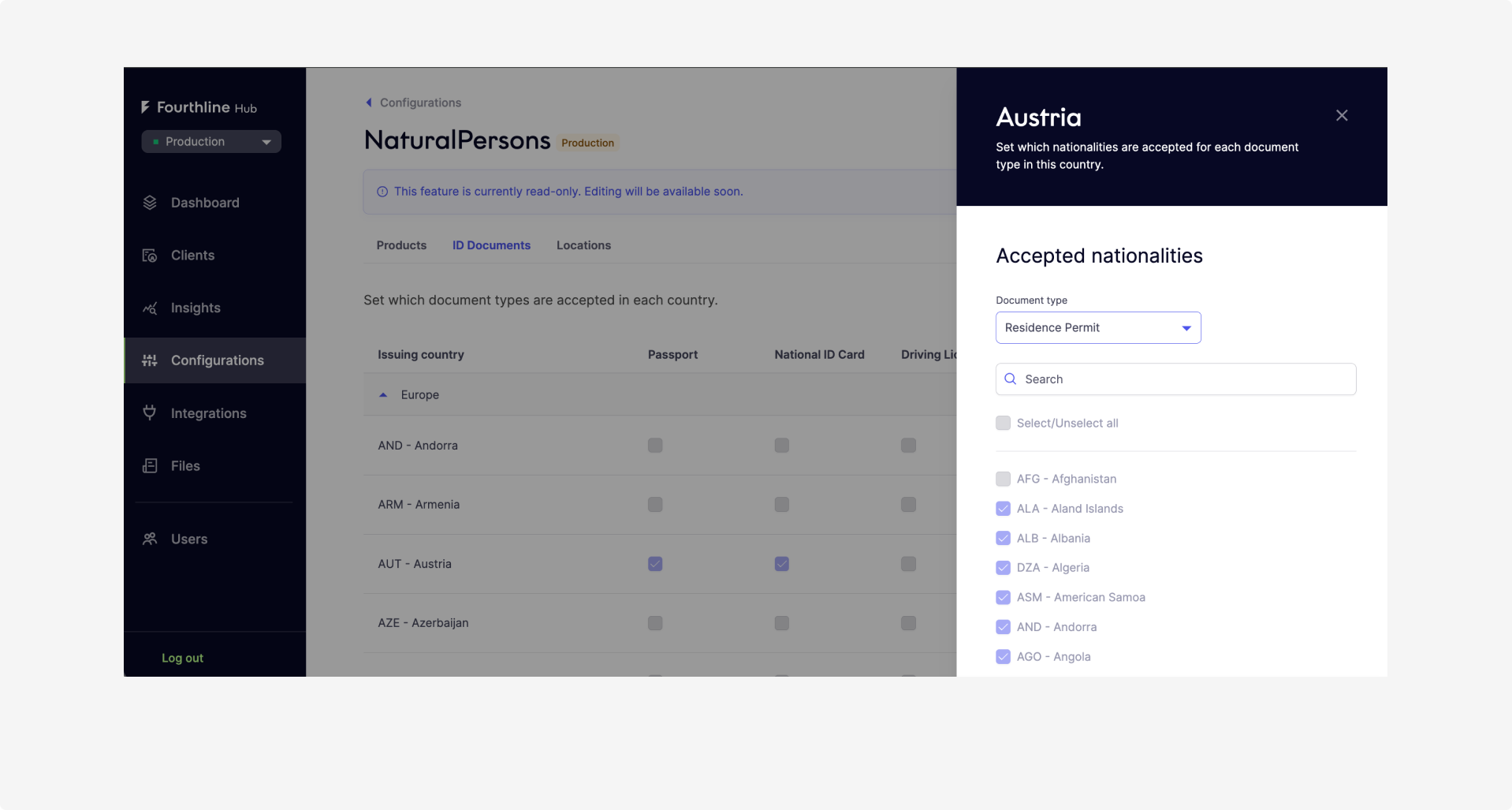
Configurations page in Hub
View workflow configurations
- Go to the Configurations page to view your workflow configurations for the selected environment.
If you have a Prospect account, you can only view preconfigured test workflows available on the Dashboard page.
- Select a workflow configuration to see its details.
- Products: Enabled Fourthline products
- ID Documents: Supported ID documents
- Locations: Allowed and prohibited countries of residence
Change supported documents or locations
Users with the Configuration Editor role can change:
- Supported documents
- Nationalities
- Issuing countries
- Residence countries
- Prohibited countries
Important
This feature is available only for organizations with a Business Partner account type. It is not available for Prospect accounts.
To change supported documents or locations:
- Go to the Configurations page.
- Open the workflow configuration you want to change.
- Select Edit mode.
- Open ID Documents or Locations.
- Select or clear the relevant options.
You can make changes in both tabs before saving.
Depending on whether the workflow configuration uses API v2 endpoints and on your account permissions, configuration changes are deployed in one of two ways:
- Direct deployment: Deploy changes to Sandbox, Production, or both.
- Change request: Submit changes to Fourthline for review and deployment.
On the Configurations page, check the Sandbox and Production columns:
- If a column shows a version number, that environment uses API v2 and supports configuration versioning.
- If a column shows only Sandbox or Production, that environment uses legacy endpoints. Changes must be submitted to Fourthline for deployment.
Deploy changes
If direct deployment is available, you can deploy your changes from Hub:
- Select Save & Deploy.
- Select the environment or environments where you want to deploy the changes.
- Confirm the deployment.
Hub creates a new configuration version and starts deploying it to the selected environments.
Deployment usually completes within a few minutes. You can check the deployment status in the configuration's version information.
After deployment, you can test your changes in Sandbox. For instructions, see Workflow testing.
Request changes
Some configuration changes require review and implementation by Fourthline. This applies to configurations that use legacy endpoints and to certain changes for configurations that use API v2.
To request a change:
- Select Request changes.
- Review and submit the request.
After you submit the request:
- You receive a confirmation email.
- Your current configuration remains active while Fourthline reviews and implements the requested changes.
- Fourthline contacts you if additional information is required.
- When the changes are implemented, the updated configuration becomes visible in Hub.
If you submitted a request by mistake or need to provide additional information, contact your Fourthline point of contact.
Configuration versions
For configurations that support versioning, Hub creates a new version each time you save and deploy configuration changes.
Versions let you track configuration changes, check their deployment status, and return to a previous configuration.
The current version appears below the workflow configuration title. To see previous versions, open the Version history tab.
You can redeploy a previous version to return to a previous configuration.
Version statuses are shown for the related environment:
| Color | Status |
|---|---|
| Green | The version is active. |
| Yellow | Deployment is in progress. The version is not active yet. |
| Red | Deployment failed. The version is not active. |
| Grey | The version was previously active but is now inactive and archived. |
Create a workflow configuration
Create a workflow configuration using a predefined template. Templates simplify setup and provide configurations aligned with recommended best practices.
To create a workflow configuration:
- Go to the Configurations page.
- Click Create new workflow.
- Enter a unique workflow name. You cannot change the name after creation.
- Select the template that matches your use case.
- Click Create workflow.
If you need additional customization, contact the Fourthline team.
Note
All workflow templates use API v2 integrations. To create verifications with these configurations in Production, you must be integrated with the API v2 endpoints. For more information, see Workflows integration.
SDK Styling
Use SDK Styling in Hub to customize the appearance of Fourthline's Web and Mobile SDKs to match your brand.
You can configure colors, fonts, button styles, and other visual elements, and preview the result in Hub before requesting a change.
How styling works
When you open SDK Styling, Hub displays your organization's current styling. If your organization does not have custom styling, the editor uses Fourthline's default styling as a starting point.
Changes you make in the editor do not affect your SDK until you select Save & Request and Fourthline applies the requested changes.
Note
Sandbox and Production use the same styling configuration. You cannot configure separate styling for each environment.
Styling workflows
By default, custom styling applies to all existing workflows and branches in your configuration.
New workflows use Fourthline's default styling and do not automatically inherit your custom styling.
Contact your Fourthline customer success manager if you want to:
- Apply different styling to specific workflows.
- Apply your existing custom styling to a new workflow.
Access and permissions
Your account type and role determine what you can do in SDK Styling.
| Account type | Role | Access |
|---|---|---|
| Business Partner | Configuration Editor | View and edit styling, and submit change requests |
| Business Partner | Base | View the current styling |
| Prospect | — | Edit and preview styling; changes cannot be saved or submitted |
Customize SDK Styling
To open the styling editor:
- Go to the Configurations page.
- Select SDK Styling.
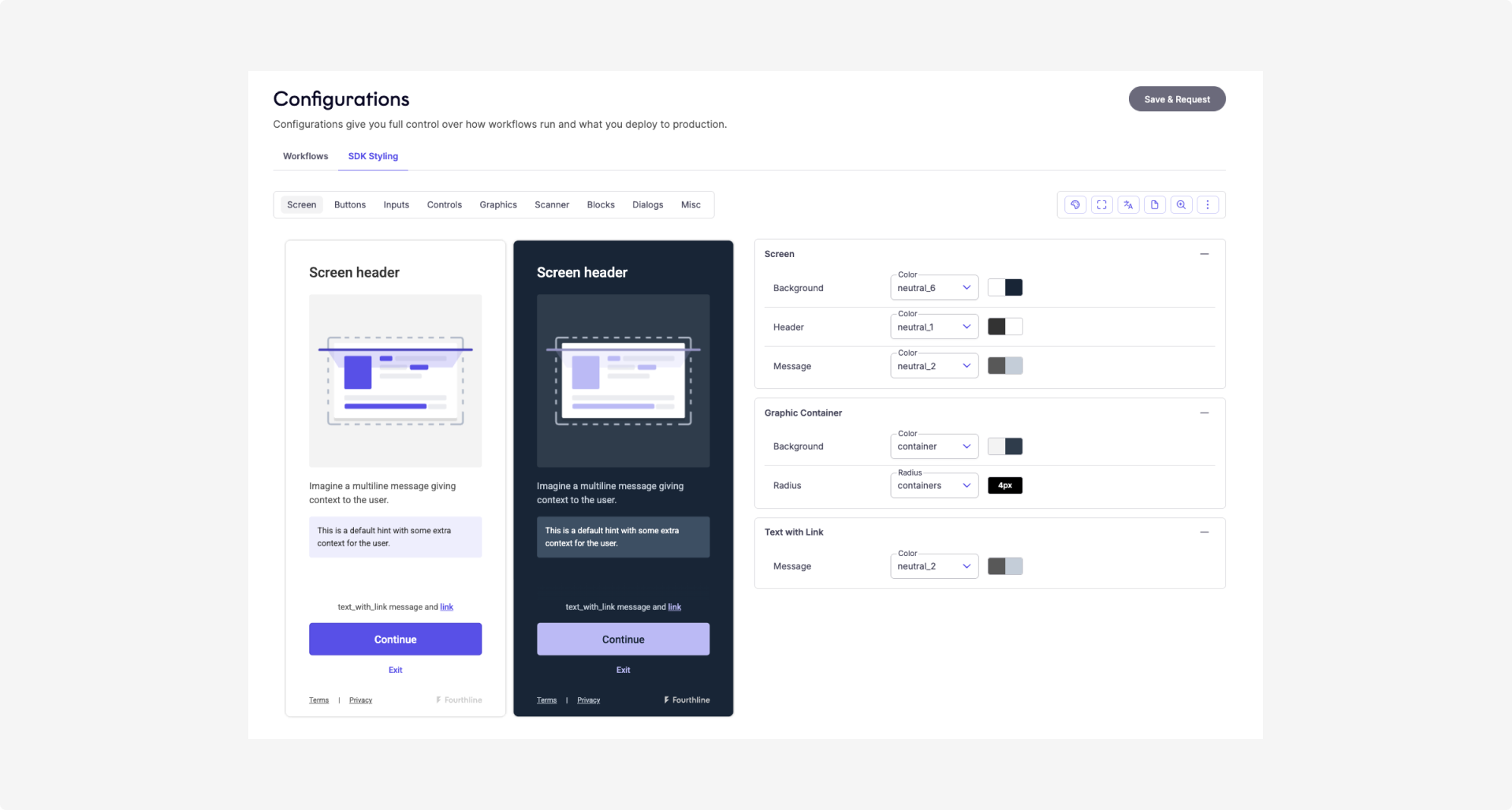
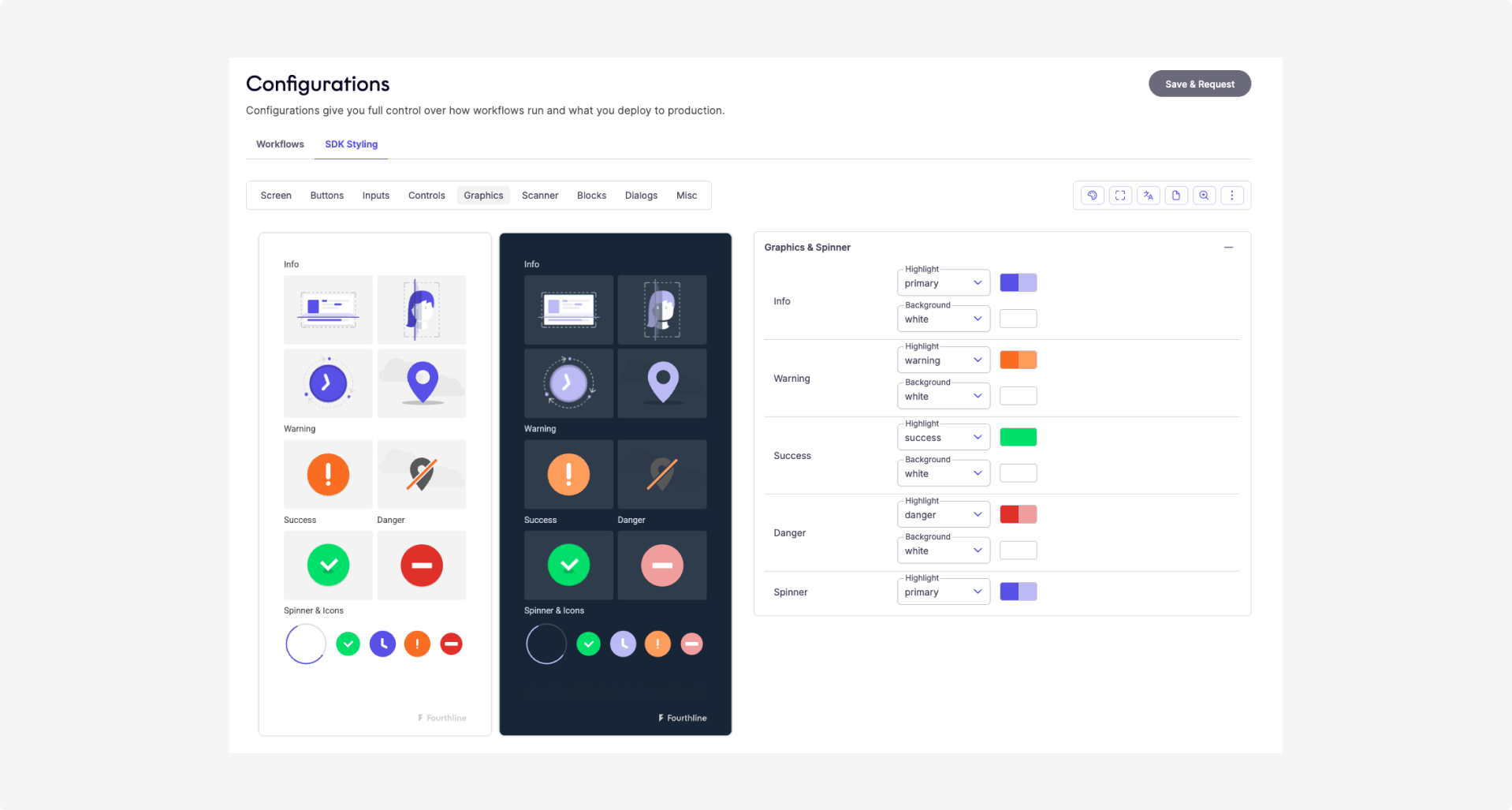
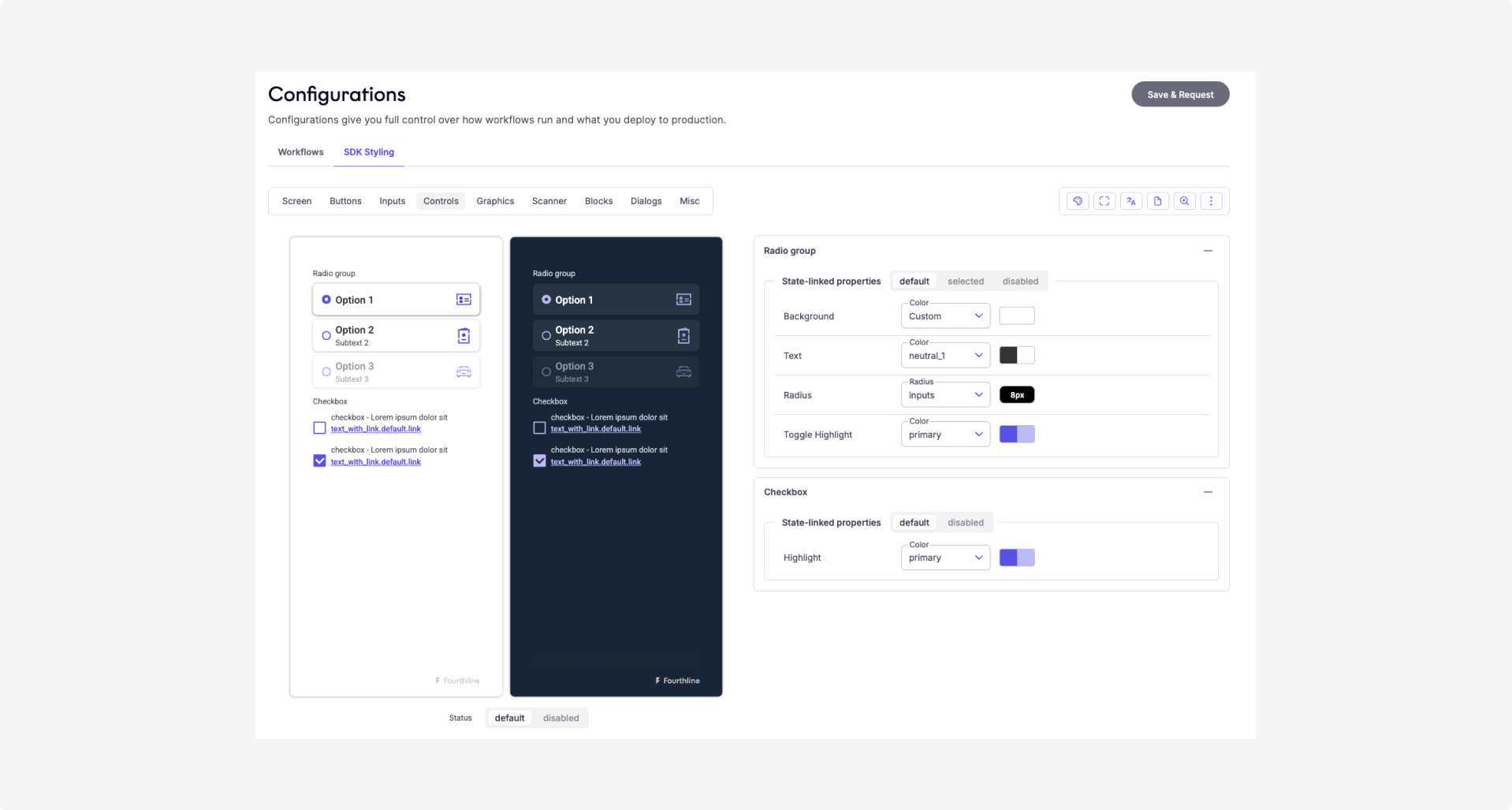
You can customize the following visual properties:
| Element | What you can change |
|---|---|
| Colors | Primary, secondary, background, and text colors |
| Font | Font family and font size |
| Button border radius | Roundness of button corners |
| Button border | Border width and color |
Custom styling applies to both Web SDK and Mobile SDK workflows.
Preview your changes
As you edit the styling properties, the preview updates automatically to show how your styling appears on SDK screens.
Previewing your changes does not affect your current Sandbox or Production configuration.
To preview the changes you made:
- Go to the Configurations page.
- Select SDK Styling.
- Select the more options menu, then select Preview.
Submit a styling change request
Changes you make in the styling editor are not applied to your SDK until Fourthline processes your request.
To submit a styling change request:
- Make your changes in the styling editor.
- Select Save & Request.
- Review the changes in the confirmation dialog, then confirm your request.
After you submit the request:
- You receive a confirmation email.
- Your existing styling remains active while the request is being processed.
- Your Fourthline customer success manager reviews the request and coordinates the implementation.
- When the changes are applied, Hub shows the updated styling.
You do not need to download or send the styling configuration separately.
If you submitted a request by mistake or need to provide additional information, contact your Fourthline customer success manager.
Updated 9 days ago