
NFC Component
App Components
Use the NFC Component to read the chip in a supported identity document on an existing workflow session.
The NFC Component provides the interface for scanning an identity document's NFC chip. Your app manages the preceding screens, including instructions, CAN entry, and document preparation. It must also collect or obtain the data required to unlock the chip and pass the security key through NfcComponentConfig.
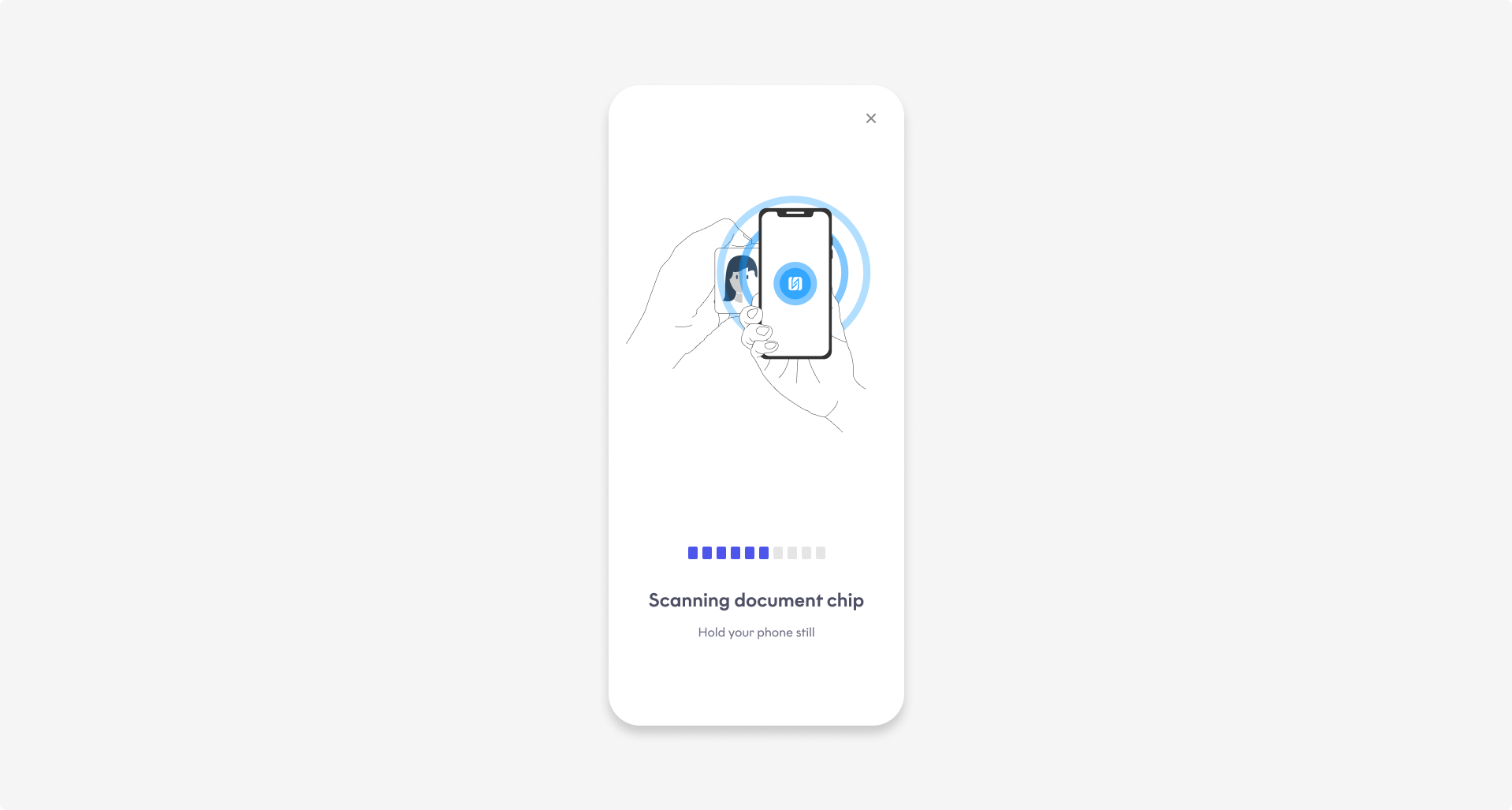
NFC Component
Note
The NFC Component is supported only by the native Android and iOS SDKs. It is not available in the Cordova, Flutter, or React Native plugins.
For more information, see: Document NFC and Supported NFC documents.
Security key
The NFC Component requires one security key to unlock the document chip. Choose the key based on the document and the data available to your app. Pass exactly one key in NfcComponentConfig.
| Security key | Description |
|---|---|
| MRZ data | Document number, date of birth, and expiry date from a passport, ID card, residence permit, or French ID card. |
| CAN | Card access number collected by your app before launching the scanner. |
| IDL MRZ | Raw MRZ data from a Dutch driving licence. |
Android
// MRZ data
NfcScannerSecurityKey.createWithMrtdData(
    documentNumber, birthDate, expiryDate
)

// Card access number (CAN)
NfcScannerSecurityKey.createWithMrtdCanNumber(number)

// Dutch driving licence MRZ
NfcScannerSecurityKey.createWithIdlMrz(mrz)
iOS
// MRZ data
NFCScannerSecurityKey.createWithMrtdData(
    documentNumber: documentNumber,
    birthDate: birthDate,
    expiryDate: expiryDate
)

// Card access number (CAN)
NFCScannerSecurityKey.createWithCanNumber(number: number)

// Dutch driving licence MRZ
NFCScannerSecurityKey.createWithIdlMrz(mrz: mrz)
Note
- Use UTC for all dates.
issuingCountryis optional. If provided, use an ISO 3166-1 alpha-3 country code. The SDK uses this value to determine the chip position and configure the scanner.
Document types
The NFC Component supports the following document types:
| Document type | Description |
|---|---|
passport | Passport |
idCard | ID card |
frenchIdCard | French ID card |
residencePermit | Residence permit |
dutchDriversLicense | Dutch driving licence |
Before you begin
- Start a workflow session (
Orca.workflowSession), then callnfcComponentwithNfcComponentConfig. - The device must support NFC. On iOS, enable Near Field Communication Tag Reading and the
Info.plistkeys described in iOS Drop-in setup. - Build the unlock key from data you already have (MRZ fields, a CAN, or an IDL MRZ). The component does not capture those values.
- The component runs preparation before the scanner opens. If preparation fails,
onProductCompletedruns with a failure andonPresentationStartedis not called. - If
documentTypeis not an NFC document, the component fails withnfc.invalid_configurationbefore the scanner opens. On a rooted Android device, it fails withnfc.not_availablebefore the scanner opens.
UI customization
Optional visual customization uses OrcaFlavor through NfcCustomizationConfig. See App UI Customization.
Success handling
On success, the completion callback returns NfcComponentResult. The chip payload is scannerResult (NfcScannerResult on Android, NFCScannerResult on iOS): data groups read from the chip, scan metadata (timestamp and location when available), and authentication check results.
Upload that payload with your workflow. Do not treat the SDK callback as the final case status. After upload, use Get workflow status.
Presentation callbacks
present exposes two callbacks:
| Callback | When it is called |
|---|---|
onPresentationStarted | Preparation succeeded and the SDK is about to show the scanner. Hide any host loading indicator here. Not called when preparation or configuration checks fail. |
onProductCompleted | The component finishes once (success, user cancel, or failure). Always handle the result here, and hide the loading indicator if it is still visible. |
Error handling
The NFC Component returns WorkflowFailure when a scan fails.
NFC-specific failure codes use the nfc.* prefix. Shared failure codes, such as session.*, transport.*, and user.canceled, also apply to other components.
Recovery actions
Use the recovery value to determine the next action. For available recovery actions, see Configuration → Error handling → WorkflowFailure.
| Recovery action | Failure codes | What to do |
|---|---|---|
Retry | nfc.timeout, nfc.connection_lost, nfc.authentication_failed | Keep the same WorkflowSession and call present again. |
Unrecoverable | nfc.not_available, nfc.invalid_configuration, user.canceled | Stop the component flow. Handle the outcome based on the failure code. |
Failure codes (nfc.*)
nfc.*)| Code | Description |
|---|---|
nfc.timeout | The NFC scan timed out before the chip could be read. |
nfc.connection_lost | The connection to the document chip was lost. |
nfc.authentication_failed | The unlock key did not match the document chip. |
nfc.not_available | NFC is unavailable on this device, or the device is rooted (Android). |
nfc.invalid_configuration | The document type cannot be read over NFC. |
nfc.unexpected | An unexpected NFC error occurred. |
user.canceled | The client canceled or skipped the scan. |
Testing
Start a TestMe session with a mock validation code, then launch the NFC Component with an MRZ unlock key:
import com.fourthline.core.DocumentType
import com.fourthline.networking.NetworkEnvironment
import com.fourthline.nfc.NfcScannerSecurityKey
import com.fourthline.orca.Orca
import com.fourthline.orca.core.flavor.OrcaFlavor
import com.fourthline.orca.nfc.NfcCustomizationConfig
import com.fourthline.orca.workflow.NfcComponentConfig
import com.fourthline.orca.workflow.WorkflowConfig
import com.fourthline.orca.workflow.WorkflowFailure
import com.fourthline.orca.workflow.WorkflowSession
import com.fourthline.orca.workflow.workflowSession
import java.util.Date

fun startSession(context: Context) {
  val config = WorkflowConfig(networkEnvironment = NetworkEnvironment.Mock)

  Orca
    .workflowSession(
      context = context,
      validationCode = "IDV",
    )
    .configure(config)
    .start { result ->
      result.fold(
        onSuccess = { session ->
          launchNfcComponent(context, session)
        },
        onFailure = { workflowError ->
          print("Handle error... $workflowError")
        }
      )
    }
}

fun launchNfcComponent(context: Context, session: WorkflowSession) {
  val securityKey = NfcScannerSecurityKey.createWithMrtdData(
    documentNumber = "SPECI2021",
    birthDate = Date(), // UTC date of birth from the MRZ
    expiryDate = Date(), // UTC expiry date from the MRZ
  )
  val nfcConfig = NfcComponentConfig(
    securityKey = securityKey,
    documentType = DocumentType.PASSPORT,
    issuingCountry = "NLD",
  )

  session
    .nfcComponent(context, nfcConfig)
    .customize(NfcCustomizationConfig(OrcaFlavor()))
    .present(
      onPresentationStarted = {
        // Hide the host loading indicator; the scanner is about to be shown
      },
      onProductCompleted = { result ->
        result.fold(
          onSuccess = { nfcResult ->
            print("Upload NFC result... ${nfcResult.scannerResult}")
          },
          onFailure = { throwable ->
            val failure = throwable as? WorkflowFailure
            print("Handle error... ${failure?.code?.identifier} ${failure?.recovery}")
          },
        )
      },
    )
}
import FourthlineSDK
override func viewDidLoad() {
super.viewDidLoad()
let configuration = WorkflowConfig(
networkEnvironment: .mock
)
Orca
.workflowSession(validationCode: "IDV")
.configure(with: configuration)
.start { [weak self] result in
switch result {
case let .success(session):
self?.launchNfcComponent(session)
case let .failure(workflowError):
print("Handle error...\(workflowError)")
}
}
}
func launchNfcComponent(_ session: WorkflowSession) {
let securityKey = NFCScannerSecurityKey.createWithMrtdData(
documentNumber: "SPECI2021",
birthDate: Date(), // UTC date of birth from the MRZ
expiryDate: Date() // UTC expiry date from the MRZ
)
let nfcConfig = NfcComponentConfig(
securityKey: securityKey,
documentType: .passport,
issuingCountry: "NLD"
)
session
.nfcComponent(with: nfcConfig)
.customize(with: NfcCustomizationConfig(flavor: OrcaFlavor()))
.present(
onPresentationStarted: {
// Hide the host loading indicator; the scanner is about to be shown
},
onProductCompleted: { result in
switch result {
case let .success(nfcResult):
print("Upload NFC result...\(nfcResult.scannerResult)")
case let .failure(failure):
print("Handle error...\(failure.code.rawValue) \(failure.recovery)")
}
}
)
}Example
The following examples use a sandbox validation code and a custom flavor:
import com.fourthline.core.DocumentType
import com.fourthline.networking.NetworkEnvironment
import com.fourthline.nfc.NfcScannerSecurityKey
import com.fourthline.orca.Orca
import com.fourthline.orca.core.flavor.OrcaFlavor
import com.fourthline.orca.core.flavor.OrcaFonts
import com.fourthline.orca.nfc.NfcCustomizationConfig
import com.fourthline.orca.workflow.NfcComponentConfig
import com.fourthline.orca.workflow.WorkflowConfig
import com.fourthline.orca.workflow.WorkflowFailure
import com.fourthline.orca.workflow.WorkflowSession
import com.fourthline.orca.workflow.workflowSession
import java.io.File
import java.util.Date

fun startSession(context: Context) {
  val validationCode = "xxxxxxxx" // generated by calling POST https://{{baseUrl}}/v1/workflows/{{workflowId}}/validationcode
  val config = WorkflowConfig(networkEnvironment = NetworkEnvironment.Sandbox)

  Orca
    .workflowSession(
      context = context,
      validationCode = validationCode,
    )
    .configure(config)
    .start { result ->
      result.fold(
        onSuccess = { session ->
          launchNfcComponent(context, session)
        },
        onFailure = { workflowError ->
          print("Handle error... $workflowError")
        }
      )
    }
}

fun launchNfcComponent(context: Context, session: WorkflowSession) {
  val flavor = OrcaFlavor(
    fonts = OrcaFonts(
      screenHeader = OrcaFonts.Font.FromFontRes(fontRes = R.font.roboto_medium, size = 20),
      primaryButton = OrcaFonts.Font.FromFile(file = File(...), size = 18),
    ),
  )
  val securityKey = NfcScannerSecurityKey.createWithMrtdCanNumber("123456")
  val nfcConfig = NfcComponentConfig(
    securityKey = securityKey,
    documentType = DocumentType.ID_CARD,
    issuingCountry = "NLD",
  )

  session
    .nfcComponent(context, nfcConfig)
    .customize(NfcCustomizationConfig(flavor))
    .present(
      onPresentationStarted = {
        // Hide the host loading indicator; the scanner is about to be shown
      },
      onProductCompleted = { result ->
        result.fold(
          onSuccess = { nfcResult ->
            print("Upload NFC result... ${nfcResult.scannerResult}")
          },
          onFailure = { throwable ->
            val failure = throwable as? WorkflowFailure
            print("Handle error... ${failure?.code?.identifier} ${failure?.recovery}")
          },
        )
      },
    )
}
import FourthlineSDK
func launchNfcComponent(_ session: WorkflowSession) {
var orcaFlavor = OrcaFlavor()
var palette = OrcaPalette()
palette.primary = UIColor(red: 82.0 / 255.0, green: 30.0 / 255.0, blue: 135.0 / 255.0, alpha: 1)
orcaFlavor.colors = OrcaColors(colorPalette: palette)
let securityKey = NFCScannerSecurityKey.createWithCanNumber(number: "123456")
let nfcConfig = NfcComponentConfig(
securityKey: securityKey,
documentType: .idCard,
issuingCountry: "NLD"
)
session
.nfcComponent(with: nfcConfig)
.customize(with: NfcCustomizationConfig(flavor: orcaFlavor))
.present(
onPresentationStarted: {
// Hide the host loading indicator; the scanner is about to be shown
},
onProductCompleted: { result in
switch result {
case .success:
print("Upload NFC result...")
case let .failure(failure):
print("Handle error...\(failure.code.rawValue) \(failure.recovery)")
}
}
)
}Updated about 1 hour ago