
Workflow Testing
Fourthline Hub
Hub lets you simulate complete verification workflows in a safe environment, ideal for testing setup and behavior before going live.
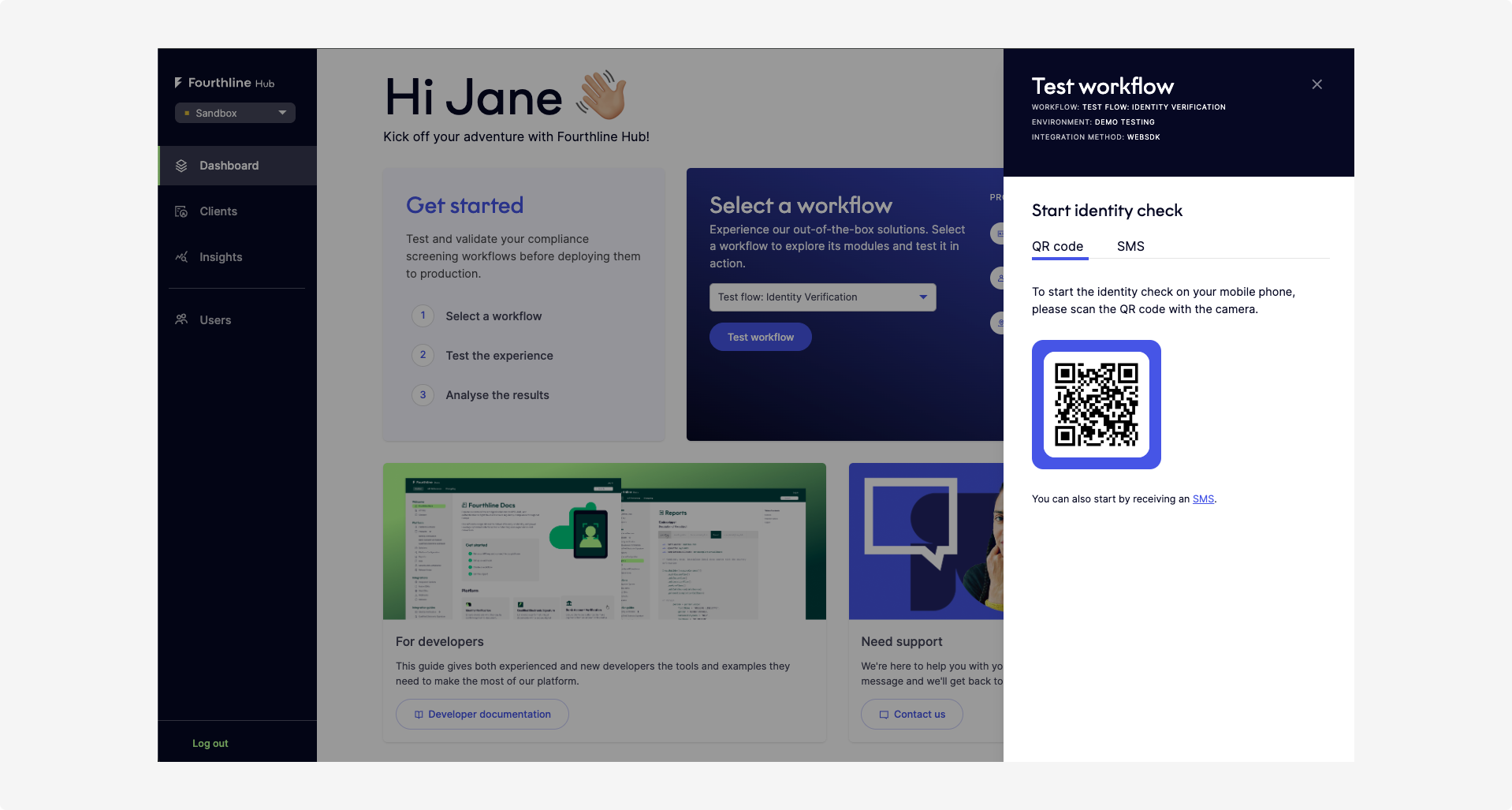
Hub Test Workflow
Prerequisites
To test workflows in Hub, you need:
- Access to Hub.
- A mobile device with a camera.
- A desktop or laptop.
- An internet connection on both devices.
- An identity document (required when testing the Documents product).
If Test workflow is not visible in Hub, your organization's security settings may restrict access. Contact your customer success manager to enable it
Trial
As a prospective Business Partner, you can request a 14-day trial. A trial allows you to test Fourthline’s workflows in a near real-life environment, including real compliance checks and, where applicable, manual review.
Activate a trial
- Log in to Hub.
- In the top banner, select Request trial.
- Confirm that you agree to be contacted by a member of Fourthline’s commercial team, who will guide you through setup.
After activation, you can start testing a workflow. The trial automatically expires after 14 calendar days.
Access results
Availability of result retrieval depends on your account type. API credentials allow you to retrieve results from your test workflows.
- Status and report endpoints are available for both trials and existing Business Partners.
- Webhook notifications are only available for existing Business Partners and are not supported during trials.
How to test a workflow
In this section, you’ll learn how to test automated workflows in Hub. We’ll walk you through setting up your test, running the workflow, and viewing the results.
To get started:
1. Access the Hub
Log in to Hub with your credentials. If you do not have an account, see create an account.
2. Select a workflow
Select the workflow type you want to test and click Test workflow to begin testing.
The available workflows are:
- Identity Verification
- Identity Verification and QES
- Document-Only Verification
- Biometric Authentication
Tip
The Biometric Authentication workflow becomes available after you successfully complete any other test workflow that includes the Biometrics product.
3. Choose a testing method
Hub offers two environment options and two SDK integrations for testing workflows.
First, select your testing environment:
| Environments | Description |
|---|---|
| Demo testing | Test the SDK flow in a Sandbox environment without real compliance checks. • Available for everyone. • Fully automated, no review by a human agent from Fourthline. |
| Live testing | Test the SDK flow in a Sandbox environment with real compliance checks. • Available to current and prospective Fourthline Business Partners in trial mode. • May require review by a human agent from Fourthline. |
Next, select your preferred SDK integration:
4. Start the workflow
Start the workflow on your mobile device by scanning the QR code.
5. Complete the workflow
Follow the verification steps on your mobile device and submit the workflow. If you run into an error, select Try again in Hub to start a new test workflow with the same workflow type.
6. View results and statuses
Once you complete a test workflow, you can review the results:
- Select View results in Hub to open the Clients page.
- Or search for the client ID manually in Clients.
Tip
The client ID is linked to your user account, so every test workflow you run uses the same client ID.
Important
If you start a test workflow in the Production environment, Hub automatically switches to the Sandbox environment to display the Clients page and the test workflow details.
Retrieve results
You can retrieve results from your test workflows using the following options:
| Option | Description |
|---|---|
| Webhook notifications | Get notifications for all test workflows through the callback URLs configured in your Sandbox environment. Available for existing Business Partners only. |
| Status endpoint | Use Get case status to retrieve the JSON result of a test workflow. Available for existing Business Partners and trials. |
| Report endpoint | Use Get CDD zipfile to download a ZIP file containing the CDD PDF, XML response, and uploaded media files. Available for existing Business Partners and trials. |
View workflow status
To check the current status of your test or live workflow:
- Log in to Hub.
- Go to Clients.
- Select your client ID.
The page shows:
- The current status of your client ID.
- The current status of your workflow case.
Data privacy
For information on data privacy, see our privacy statement.
Next steps
Learn more about your clients and explore Hub Insights dashboards.
Updated 20 days ago