
Identity Verification Integration
Integration Guides
App Drop-in guide
This guide provides step-by-step instructions on how to integrate the European Identity Verification solution with the App Drop-in.
Before you begin, make sure you have completed the following:
- App Drop-in Setup with your chosen SDK
- App UI Customization
- Identity Verification Setup
Flow
Click to magnify.
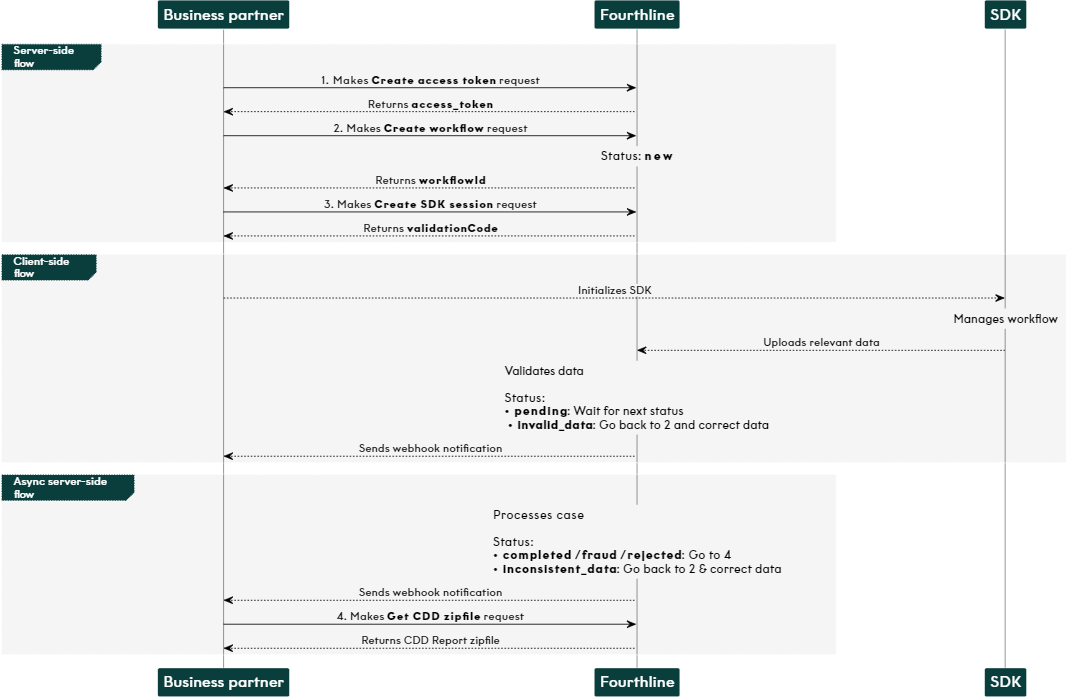
1. Authenticate
Create an access token to authenticate in our API:
- You provide your Fourthline API credentials.
- You receive an
access_token.
Tutorial: Create access token
API Reference: Create access token
Important
For security, access tokens are valid for 1 hour only.
If your token expires, create a new one by making another Create access token request.
2. Create workflow
Create a European Identity Verification workflow:
- You specify the
workflowNameand provide your unique identifier for the client. - You receive a
workflowIdand a FourthlineclientId.
Tutorial: Create workflow
API Reference: Create workflow
 Status: The Identity Verification case status changes to
 new.
- Upload identity data
If configured, upload relevant identity data:
- You provide the
verificationIdand relevant data points. - A successful response is empty.
Tutorial: Upload identity data
API Reference: Upload identity data
3. Create SDK session
Create the App Drop-in session:
- You provide the
workflowId. - You receive a
validationCodeto pass to the SDK in your backend.
Tutorial: Create App Drop-in SDK session
API Reference: Create SDK session
Important
- SDK validation codes are single-use and expire after 2 hours.
- If the client stops partway through the workflow, create a new SDK session.
- When the client closes the app, the
validationCodeis invalidated and removed from the cache.
Status: The case status changes to one of the following and we send the relevant webhook notification:
| Status | Description | Action |
|---|---|---|
pending | The data is valid. | Wait for the next status. |
invalid_data | Invalid or missing data. | Create a new workflow. |
Status: The case status then changes to one of the following and we send a webhook notification:
| Status | Description | Action |
|---|---|---|
inconsistent_data | We found inconsistent data. | Create a new workflow. |
completed | We have processed the case. For our recommendation to accept or reject the client, see the risk code. | Download the CDD Report. |
- Check case status
When you receive webhook notifications, we recommend also requesting the full case details:
- You provide the
verificationId(same value as theworkflowId). - You receive all the data on the case.
Tutorial: Get case status
API Reference: Get case status
Important
Prevent duplicate submissions by following the recommended handling described here.
4. Download CDD Report
When the case status is completed, download the CDD Report zipfile:
- You provide the
workflowId. - A successful response is empty and the report is downloaded.
Tutorial: Get CDD zipfileAPI Reference: Get CDD zipfile
Updated 3 months ago